![KLD Logo Only-1.svg]](https://www.kldiscovery.com/hubfs/KLD%20Logo%20Only-1.svg)
 Signing in to Client Portal
-
Navigate to the Client Portal URL for your region in your web browser.
-
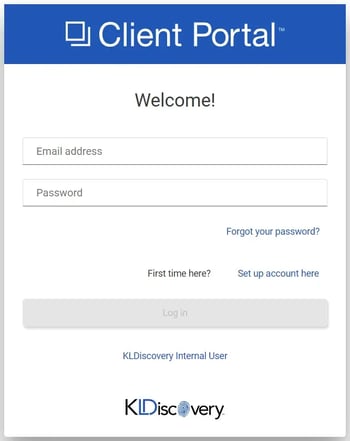
On the Welcome page, enter your e-mail address and password.
-
Click the Log In button.
First time users can follow the Create an Account instructions to set up an account.
Creating a New Account
-
Navigate to the Client Portal URL for your region in your web browser.
-
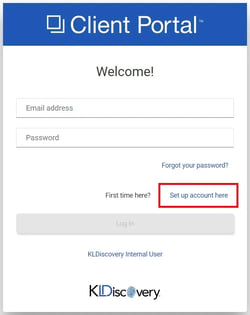
On the Welcome page, click the Set up account here link.
-
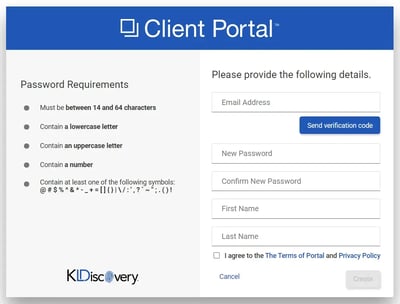
On the account setup dialog, enter your e-mail address and click Send Verification Code.
-
Check your e-mail and enter the verification code provided.
-
Enter your desired password and confirm it by entering it again.
-
Populate the First Name and Last Name fields.
-
Check box to agree to Terms of Use and Privacy Policy.
-
Click Create.