
Downloading Invoices
Single Invoices
-
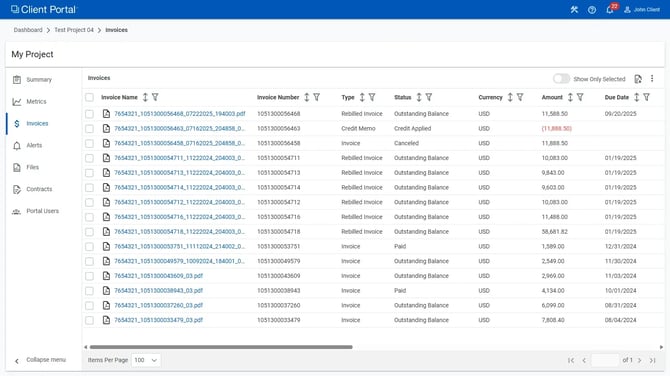
In the Invoice List, locate the Invoice Name column, and click on the file name within the column.
-
A download progress window will appear in the bottom right corner of the page while the invoice PDF is generated.
-
Once generated, the invoice PDF will download automatically.
Multiple Invoices
-
In the Invoice List, select the checkboxes in front of the invoices you would like to download.
-
The number of selected invoices will appear in the header of the Invoice List, along with a Download button. Click the Download button.
-
A download progress window will appear in the bottom right corner of the page while a ZIP file containing all of the selected invoices is generated.
-
Once generated, the ZIP file of selected invoices will download automatically.
Downloading Invoice Data
For complete details on the fields of data available related to invoices and the data they contain, see Invoice Fields.
-
In the tool bar above the Invoice List, locate and click the Export CSV button.
-
A CSV (comma separated text file, which can be opened using Excel) file will be downloaded.
-
Any Invoice List filters applied will also be applied in the exported CSV, and only data for invoices shown in the list at the time the export is performed will be included.
-
Sorting Invoices
-
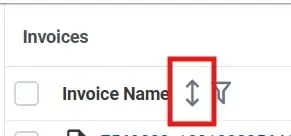
In the Invoice List, locate the column header for the field you want to use to sort the list and click the Toggle Sorting icon.
-
A single click will sort in ascending order, a second click will sort in descending order, and a third click will stop using the field for sorting and revert the Invoice List to the original sort order.
Filtering Invoices
-
In the Invoice List, locate the column header for the field you want to use as a filter and click the Filter icon.
-
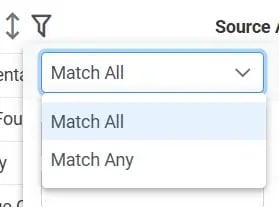
In the Filter dialog, select if you want to Match All conditions or Match Any condition.
-
Select how you want to search within the field:
-
Starts with
-
Contains
-
Not contains
-
Ends with
-
Equals
-
Not equals
-
-
Enter the term(s) you want to use to filter.
-
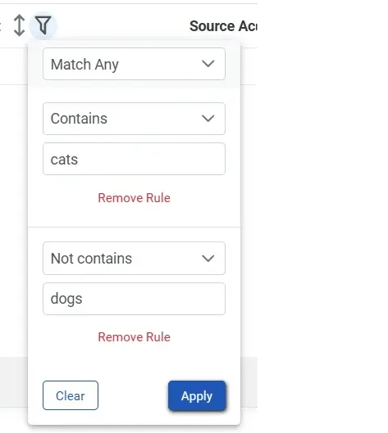
To apply two filters on a field, click Add Rule after entering your first criteria and then enter the second criteria.
-
Click Apply to apply the conditions and update the Invoice List.
Configuring Pagination
-
At the bottom of the Invoice List, locate the Items Per Page control.
-
Select the number of invoices you want to have displayed on each page.
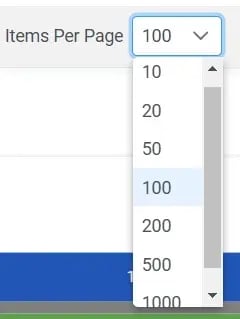
-
The new pagination setting is applied and the Invoice List is refreshed as soon as the selection is made.