Changing User Settings
-
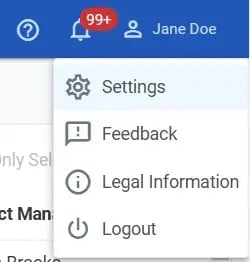
In the Client Portal header, click your name to activate the drop-down menu, and select Settings
- On the Settings page, view details about your Personal Information, Notifications, and Sign in & Security, User Settings, and Terms of Use Consent.
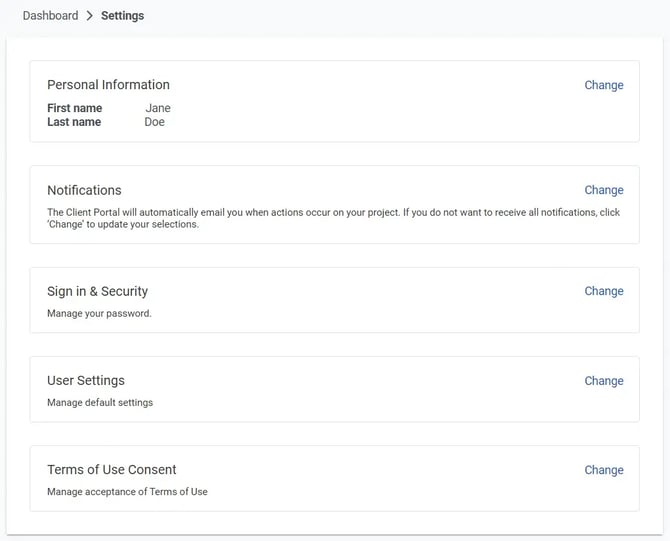
- To update the Display Name, click Change in the Personal Information section.
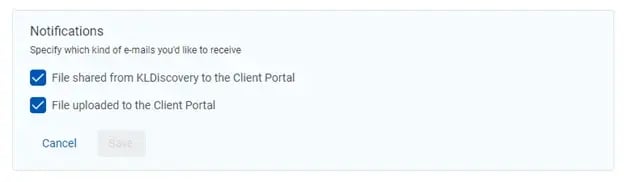
- To choose what emails you receive informing you of actions performed in the Client Portal, click Change in the Notification section and select the emails you want to review (and clear any you do not want to receive)
- To manage your password , click Change in the Sign in & Security section.
Logging Out of Client Portal
In the Client Portal header, click the User icon and select Logout .