
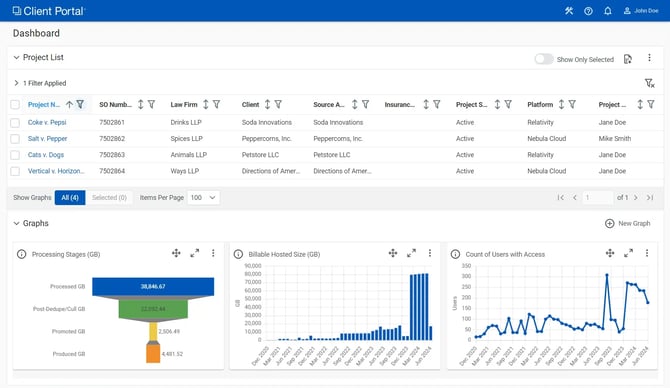
Using the Dashboard
Sorting Projects
-
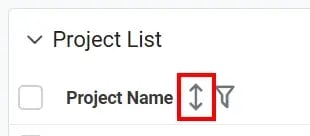
In the Project List, locate the column header for the field you want to use to sort the list and click the Toggle Sorting icon.
-
A single click will sort in ascending order, a second click will sort in descending order, and a third click will stop using the field for sorting and revert the Project List to the original sort order.
Filtering Projects
-
In the Project List, locate the column header for the field you want to use as a filter and click the Filter icon.
-
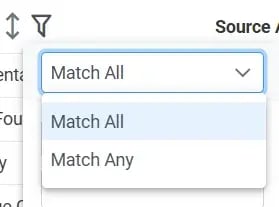
In the Filter dialog, select if you want to Match All conditions or Match Any condition.
-
Select how you want to search within the field:
-
Starts with
-
Contains
-
Not contains
-
Ends with
-
Equals
-
Not equals
-
-
Enter the term(s) you want to use to filter.
-
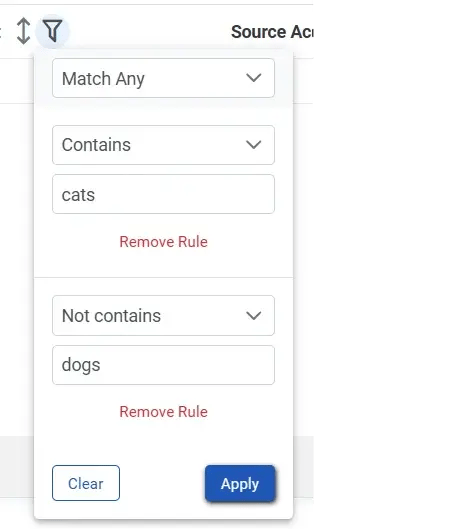
To apply two filters on a field, click Add Rule after entering your first criteria and then enter the second criteria.
-
Click Apply to apply the conditions and update the project list.
Configuring Pagination
-
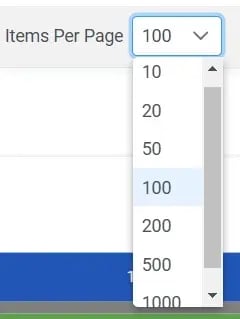
At the bottom of the Project List, locate the Items Per Page control.
-
Select the number of projects you want to have displayed on each page.
-
The new pagination setting is applied and the project list is refreshed as soon as the selection is made.