
Notification Center
The Notification Center consolidates notifications related to alerts from across all of your projects in Client Portal. From here you can manage your notifications by marking them as read or unread, or quickly jump to the settings and history for the related alerts.
Accessing Notification Center
-
From any page, click on the Notification Center icon in the main Client Portal tool bar.
-
When you have unread notifications, a red badge will appear above the Notification Center icon that contains the number of unread notifications.
-
If you have more than 99 unread notifications, the badge will read "99+" instead of showing the actual number of notifications.
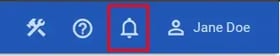
Notification Center Icon
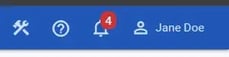
Notification Center Icon with Unread Notifications
-
-
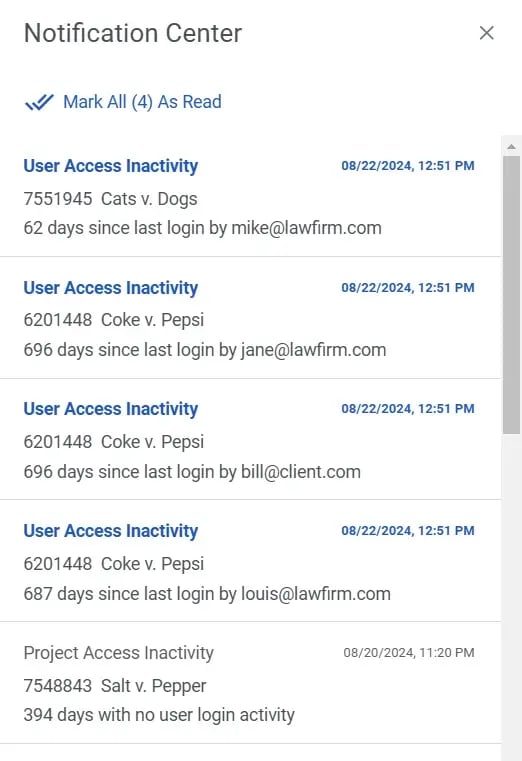
The Notification Center pane will open on the right side of the page and list all of your notifications.
-
Unread notifications will display at the top of the list, displayed in bold blue text.
-
Read notifications will display in gray text below the unread notifications.
-
Working with Notifications
Marking Notifications as Read or Unread
Notifications can be marked as read or unread directly from the Notification Center by clicking the Action button on the notification, and selecting Mark as Read or Mark as Unread.
Configuring Related Alerts
You can quickly navigate to the configuration for the alert that generated a notification directly from the Notification Center by clicking the Action button for the alert and selecting Alert Configuration.
Viewing Related Alert History
Other notifications related to the alert can be viewed by clicking the Action button on a notification and selecting Alert History. This will open the Notification History tab of the alert's page in Portal Management.
The Alert Configuration and Alert History menu items will be disabled if the alert associated with the notification has been deleted.
notification-center-action
Action Menu of a Notification in Notification Center
Notification History
Client Portal retains a history of notifications that have been generated by alerts, which can be viewed at the project level, at the alert level, or globally within Portal Management.
Project-Level History
Projects that have unread notifications will display an Unread Alert Notifications icon next to the project's SO number in the Project List on the Dashboard.
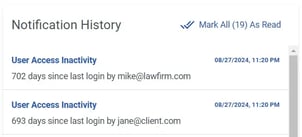 Recent unread notifications for a project can be viewed by opening the project page Summary tab and reviewing the Notification History panel. From here you can work with notifications in the same way as in Notification Center.
All notifications for a project, both read and unread, can be viewed by:
-
Navigating to the Alerts tab on the project page
-
Selecting Notification History at the top of the page.
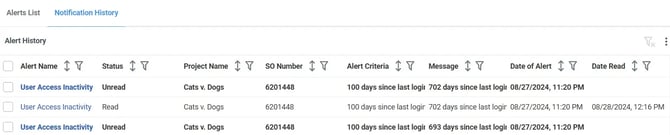
This list of notifications can be filtered and sorted using the provided fields. Additionally, you can mark all notifications as read, export a list of notifications to CSV format, or delete all notifications using the options menu at the top of the list. Individual notifications can be deleted or marked as read by hovering over the row and clicking on the Mark as Read or Delete Alert Notification buttons.
Alert-Level History
A complete list of notifications associated with a particular alert can be viewed by:
-
Navigate to the alert's page in Portal Management
-
Open the project page for a project associated with the alert and click on the alert's name.
-
From the Portal Management menu, select Alerts and then click on the name of the alert in the Alert List.
-
-
Click on the Notification History tab.
Global History
A complete list of notifications, read and unread, for all of your alerts is available in Portal Management. To access the list:
-
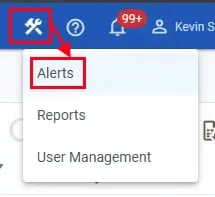
From the main Client Portal toolbar, click on the Portal Management button and select Alerts.
-
Click on the Notification History tab.
This list of notifications can be filtered and sorted using the provided fields. Additionally, you can mark all notifications as read, export a list of notifications to CSV format, or delete all notifications using the options menu at the top of the list. Individual notifications can be deleted or marked as read by hovering over the row and clicking on the Mark as Read or Delete Alert Notification buttons.
E-Mailed Notifications
When the Email Alert Notifications alert configuration option is enabled, you will receive e-mailed notifications in addition to the other notifications available in Client Portal. Notifications are e-mailed from portal.no-reply@kldiscovery.com with the subject line "KLDiscovery - Client Portal - (##) New Notifications" and will contain the following details for each alert:
-
Project SO number
-
Project name
-
Date and time alert was triggered
-
Alert detail
Additionally, the e-mail contains a hyperlink to the global Notification History tab, as well as the Notification History tab for the alert that triggered the notification.
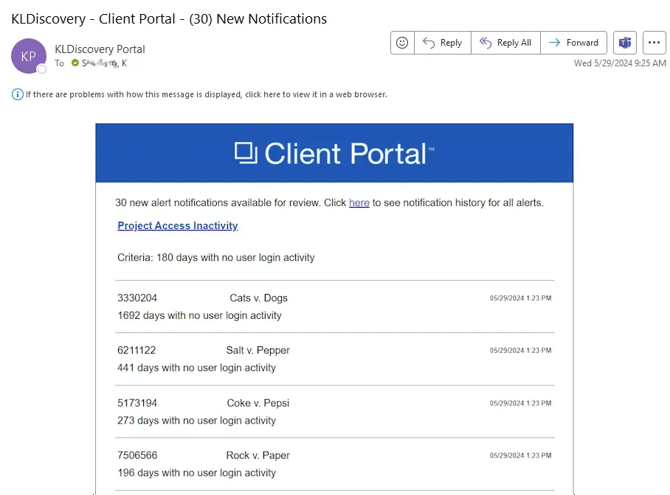
Example of an E-mailed Notification